POS operations guide
Bookshop stationery and school-set POS workflow
This supporting guide turns stationery, school-set and customer-order needs into acceptance questions. Archived Posnic evidence has generic item, barcode, stock, receiving and return paths, but the reviewed source does not establish structured book metadata, component bundles or a complete reservation and deposit workflow.
Evidence and review scope
Evidence reviewed 2026-08-18. The exact Posnic archived source tag and lockfiles were reviewed and 2,110 selected item, supplier, receiving, return, stock, receipt, report, import and backup tests passed.
Stable release: v1.9.0. No bookstore dataset, complete shop day, physical scanner or printer, ISBN validation, component bundle, reservation, deposit, payment-terminal or locally accepted tax-invoice workflow was exercised
What the current evidence establishes
Generic barcode boundary
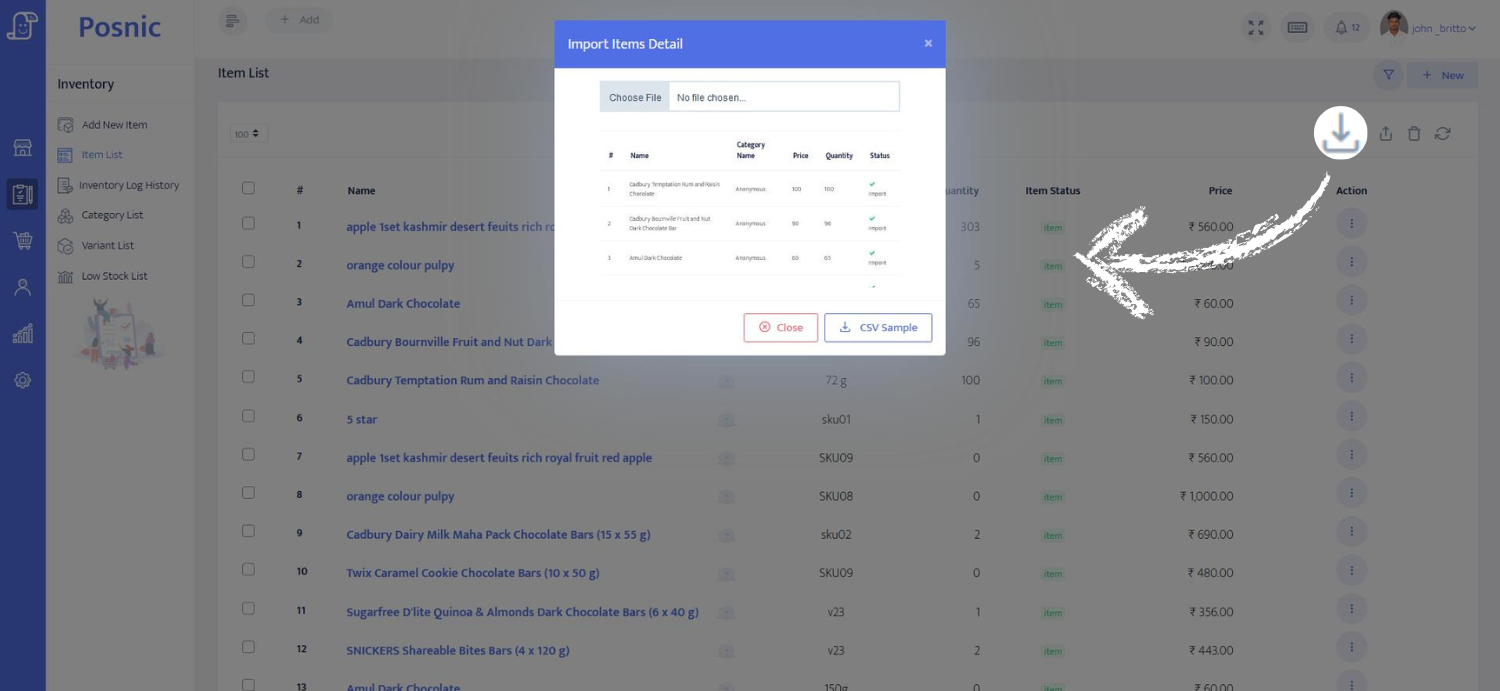
The reviewed item model exposes a generic barcode string and search paths. It does not identify the value as ISBN or validate ISBN structure, edition or format.
Catalogue boundary
The item model has name, SKU, category, supplier, price, tax and quantity fields. First-class author, publisher, edition, format, class and subject fields were not established.
Stock and supplier boundary
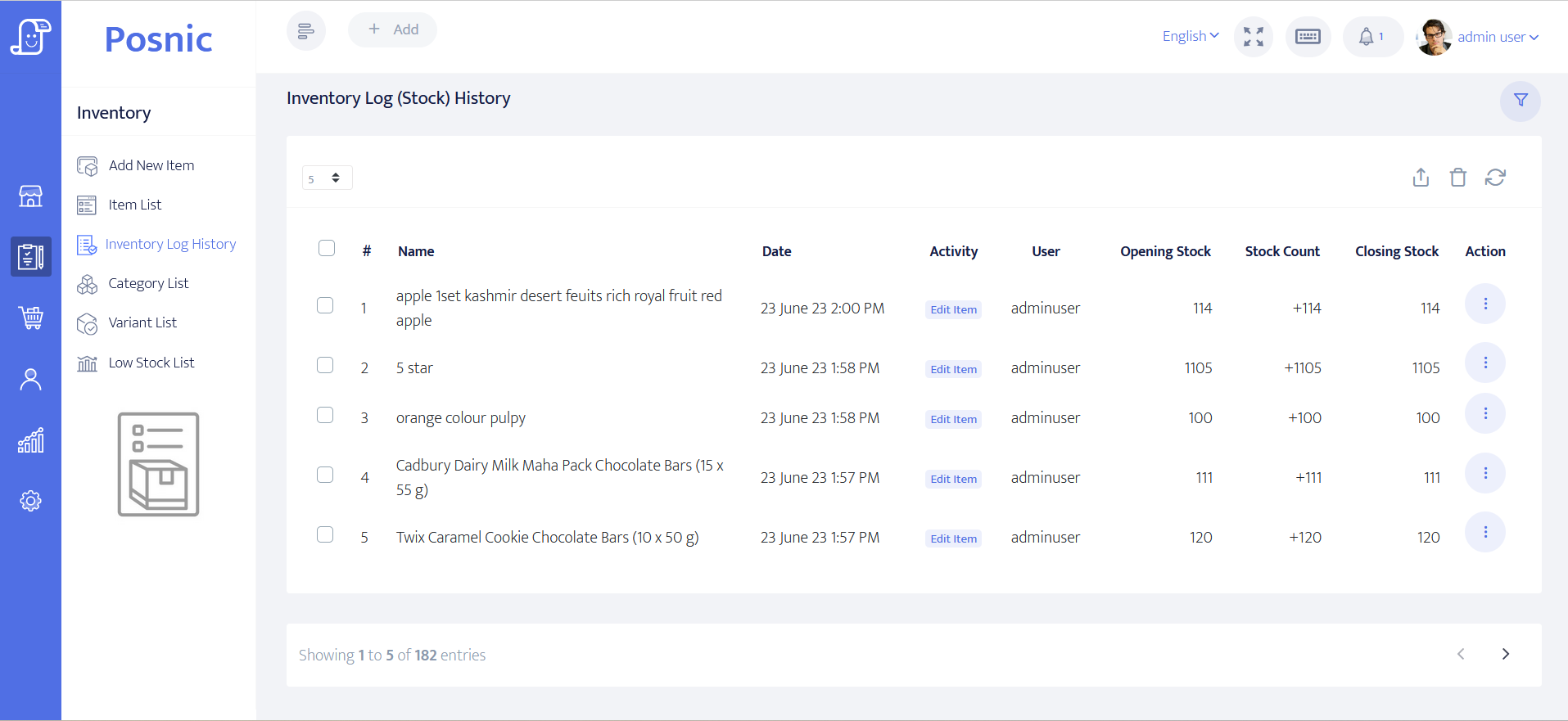
Selected receiving, supplier-return, stock-log and low-stock paths passed source tests. No physical delivery, shelf count or supplier reconciliation was completed.
Set and order boundary
No component bundle or complete reservation, special-order, deposit, balance, cancellation and collection workflow was accepted in the reviewed release.
Keep generic POS fields and book data separate
A barcode lookup can speed a tested transaction without becoming a book-industry catalogue or a component bundle engine.
| Requirement | Reviewed Posnic path | Acceptance decision |
|---|---|---|
| Book identifier | Generic barcode string and exact lookup | Prove the exact mapping; do not claim ISBN validation or metadata retrieval. |
| Book details | Generic name, SKU, category and supplier fields | Retain author, publisher, edition, format, class and subject in an approved source of truth. |
| School set | Individual items can be entered | Prove component depletion and partial returns or keep the set in an external workflow. |
| Customer order | No complete accepted path | Keep promise, deposit, status, balance, cancellation and collection evidence outside Posnic. |
| Supplier stock | Receiving and supplier-return source paths | Run representative documents and reconcile quantity, cost, tax and stock movements. |
Practical workflow
Where this workflow helps
Use these controls when a shop sells books, notebooks, pens, art materials, school lists and services in one transaction and needs to decide which records Posnic owns.
How the trial should run
Map approved catalogue fields, test exact generic barcode values, add stationery, receive and return supplier stock, run a customer return and reconcile the retained stock and transaction records.
What stays outside until proved
Keep structured book metadata, school-set component depletion and customer reservation or deposit promises in an accepted external record unless the complete Posnic workflow is implemented and tested.
What to check after the trial
Review item and category sales, low-stock results, receiving and supplier-return records, customer returns, stock movements, receipts and close totals against the approved samples.
Bookshop acceptance flow
Each step ends in retained evidence rather than a feature assumption.
Map catalogue
Choose the approved source for title, edition, format and stationery data before importing anything.
Test identifiers
Retain representative codes exactly and prove valid, duplicate, unknown and damaged scan cases.
Run individual lines
Bill every school-set component separately unless a complete bundle workflow has passed acceptance.
Route unsupported promises
Keep reservations, deposits and special orders in a named external record until Posnic proves the whole path.
Reconcile
Match sales, returns, receiving, supplier returns, stock movements and close totals before approval.
Evidence and tools required
Hardware
- Exact POS computer and operating-system build used for the trial.
- Exact scanner make, model, connection, mode and representative identifier samples.
- Exact receipt printer, paper width, driver or protocol and locally approved invoice sample.
- Optional label printer only after its symbology, dimensions and scan-back result are accepted.
- Approved backup location and a separate test environment for import and restore work.
Software and data
- Approved book and stationery catalogue with explicit field ownership.
- Generic Posnic item, barcode, category, supplier, price, tax and tracked-stock fields.
- External source for structured author, publisher, edition, format, class and subject data where required.
- External component-set and customer-order record where the reviewed Posnic paths are insufficient.
- Blank bookstore acceptance record with named business and specialist owners.
Setup sequence
- Create a test catalogue with two editions or formats of one title plus representative stationery and services.
- Map any ISBN-13 value to the generic barcode field only after confirming exact text retention and duplicate policy.
- Trial-import a copy of the catalogue and reconcile accepted, updated and rejected rows.
- Run a sale, return, receiving, supplier return, low-stock check and stock adjustment with retained references.
- Test school-set component and customer-order needs; assign every unproved step to an external system and owner.
- Print or export the approved document, close the trial, back up and restore before recording a decision.
What each person sees
Customer
In an accepted trial, the receipt or invoice shows the approved item descriptions, quantities, prices, tax and payment wording.
Cashier
In an accepted trial, valid generic barcodes resolve once and unknown or duplicate codes follow the documented fallback.
Owner
In an accepted trial, sale, return, receiving and stock records reconcile while unsupported metadata and promises retain named owners.
Product evidence to inspect
Mistakes to avoid
Avoid these during rollout
- Calling the generic barcode field an ISBN validator or book-metadata service.
- Treating one item named as a school set as proof that component stock reduces correctly.
- Promising a reservation or deposit workflow without status, balance, cancellation and collection evidence.
- Importing the live catalogue before reconciling a copy in a test database.
- Approving the setup without the exact scanner, printer, tax sample, close and restore drill.
Record the complete bookshop trial
The 24-control record starts blank so the business can retain its own observations, evidence, owners, specialist review, decision and follow-up.
Primary sources used
Posnic item source
Inspect the exact stable item fields and defaults rather than inferring bookstore metadata.
International ISBN Agency
Use the official identifier definition to separate ISBN identity from a complete catalogue and from Posnic's generic barcode field.
Retail stock count example
Use full-count, cycle-count, review and approval questions when designing the shop's physical inventory procedure.
Questions
Does Posnic validate ISBNs?
No ISBN-specific field, checksum validation or metadata lookup was established in the reviewed archived source. Test representative ISBN-13 text as a generic barcode and retain book metadata in an approved source.
How should a school set be billed?
The reviewed release did not establish component bundle behavior. Bill accepted component lines separately or keep the set in an external workflow until depletion, substitutions and partial returns are proved.
Can Posnic manage reservations or special orders?
No complete reservation, supplier-order, deposit, balance, cancellation and collection workflow was accepted. Keep those promises in a named external record until the whole path is tested.
Where Posnic fits
archived Posnic evidence can be evaluated for generic item, barcode, stock, receiving, return, receipt and report paths. The bookstore evidence owner documents the exact tested scope, dependency findings and unproved workflows.